Data Environment
(Excluding the web version)
●In-app and Google Drive
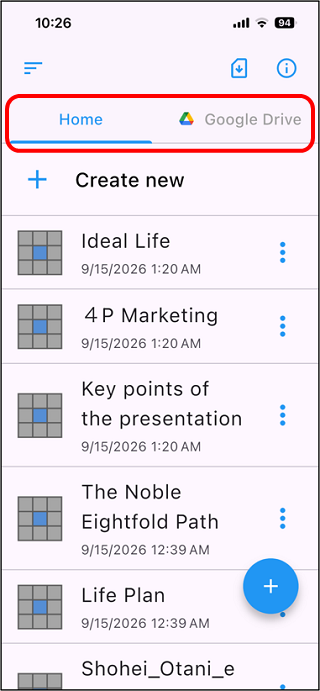
Chart files (data) created with the Mandala App can be stored within the
app (Home) and in Google Drive.
The first time you tap "Google Drive", you will be asked to sign in to your Google account.
If you do not use Google Drive, please use it only in "Home".
*A Google account is required to use Google Drive. If you use Gmail, you
can use the same account.
●Sharing Chart Data
By using the same Google account, you can share chart data across multiple
devices.
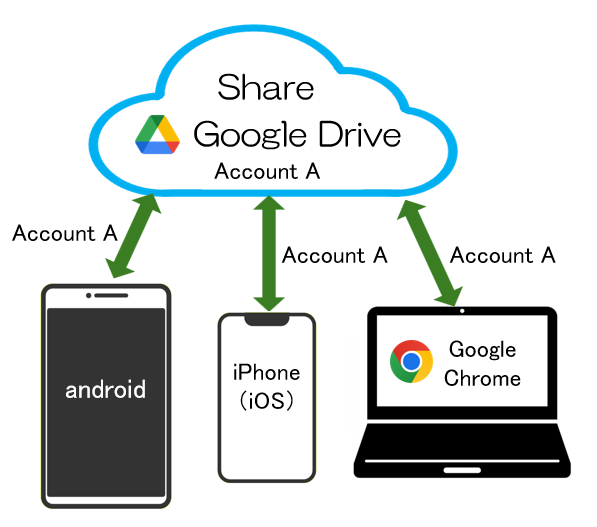
For example, by using the same Google account on your iPhone and Android
tablet, you can open a chart created on your iPhone on your Android tablet.
You need an app for each device.
Or you can use the Web App in your browser regardless of device.
●Sign out of your Google account
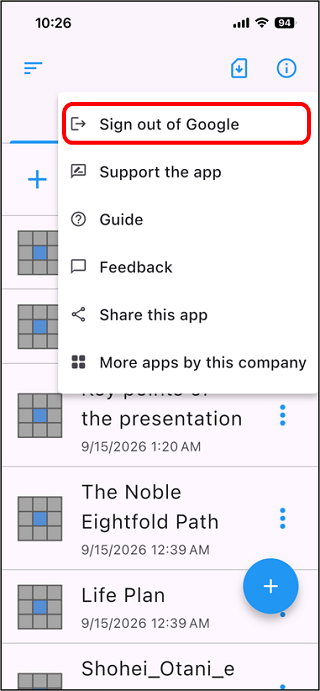
To change (switch) the Google account you have set up, tap [ ] in the top right corner of the app screen and tap "Sign Out Google"
to sign out. Then, tap "Google Drive" on the home screen and
you will be asked to sign in to Google again.
] in the top right corner of the app screen and tap "Sign Out Google"
to sign out. Then, tap "Google Drive" on the home screen and
you will be asked to sign in to Google again.
If you are only using it within the App, please use "Home" only.
●Charts created in "Home" and "Google Drive"
Charts created in "Home" and charts created in "Google Drive" are managed separately.
Therefore, if you want to store a chart created in "Home" in "Google Drive", you will need to follow the steps below.
1. Export the chart file from the "Home" tab to any location.
2. Import the exported file to the "Google Drive" tab.
*A Pro license is required to use the export/import function.
●Notes on using Google Drive
The Mandala App does not recognize chart files stored in Google Drive unless
they are created through the App.
By selecting "Google Drive" in the Mandala app and importing the chart file you want to store, it will be stored in a Google Drive
folder and recognized by the app.