Ask AI
Ask the AI detailed questions.
You can ask the AI detailed questions about the generated chart.
You can do the same for charts you have already saved by opening them.
Tap "Enter your question" at the bottom of the chart.
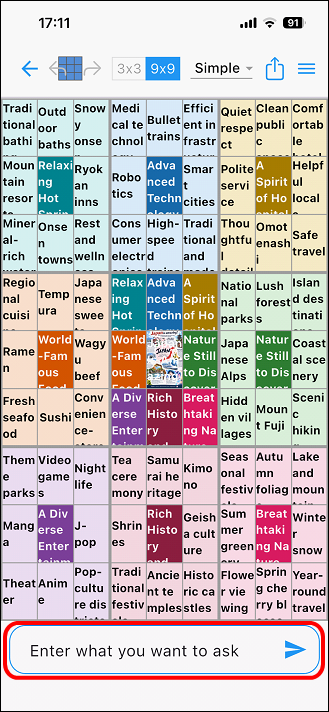
You will see "Edit" and "Ask"; tap "Ask".
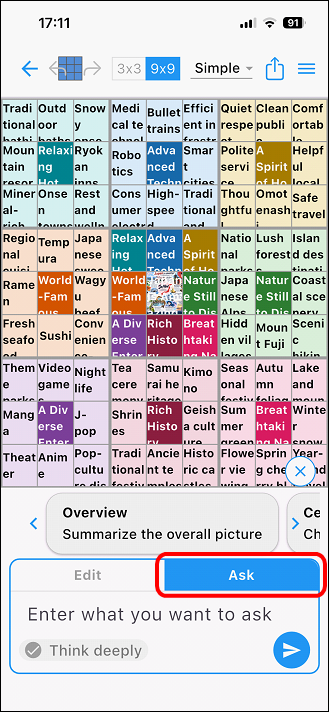
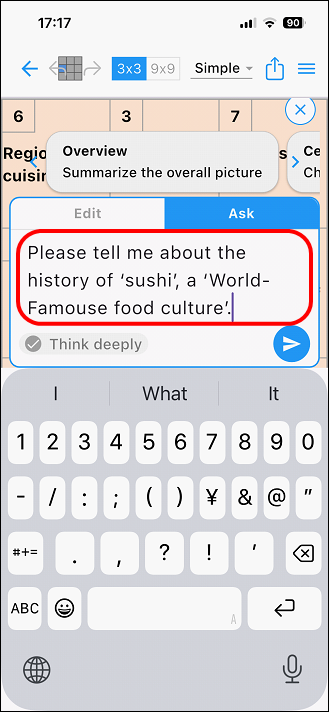
Enter your question about the chart in the "Enter what you want to ask" field.
Here, we are asking about `Please tell me about the history of 'sushi', a 'World-Famouse food culture'.'
After entering the question, tap the run icon at the bottom right to run
the question.
The response from the AI will be displayed.
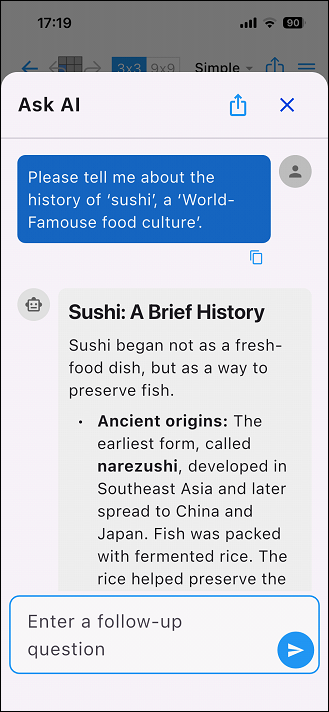
There is a copy icon at the end of the response.
Tapping this icon allows you to paste the content into a document or elsewhere.
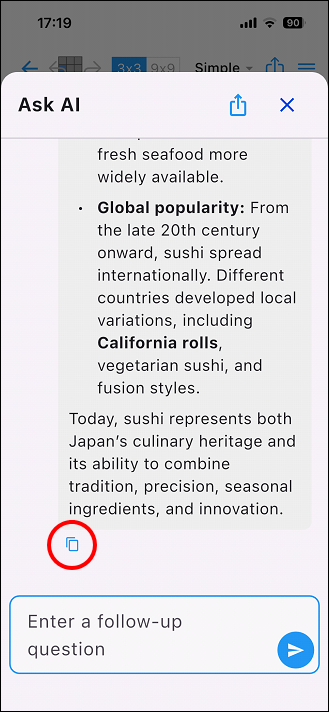
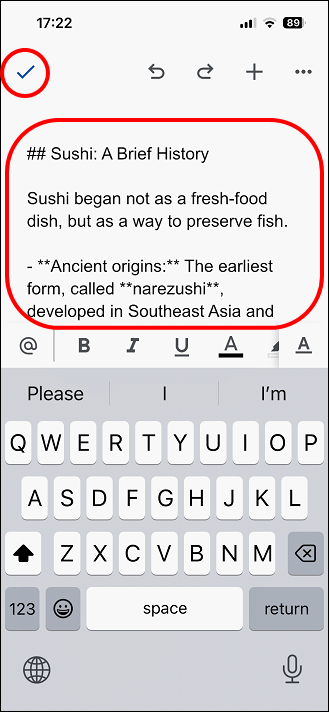
Here, we will paste it into a Google Doc and set that document's link as the link for the chart.
First, create a new Google Doc, paste the content, and save it.
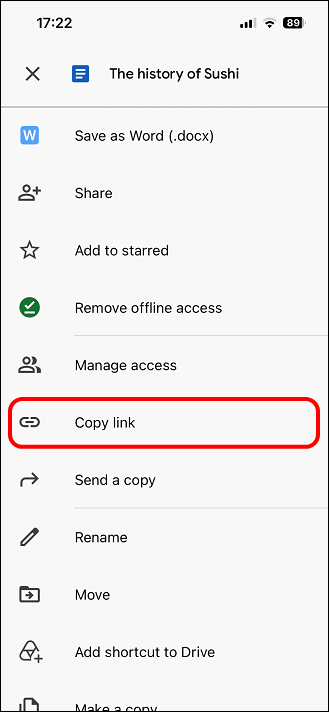
Tap the [・・・] menu icon for the saved file, then tap "Copy link."
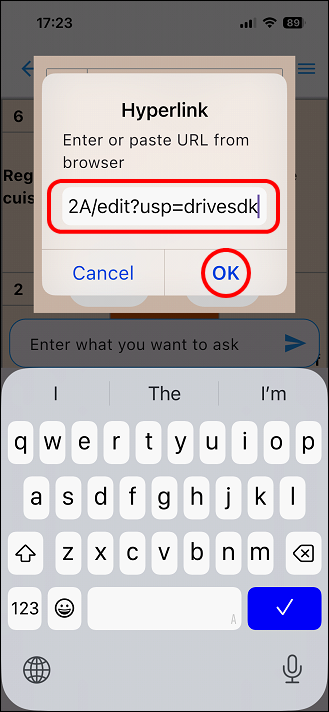
Set the copied link to the "Sushi" cell on the chart.
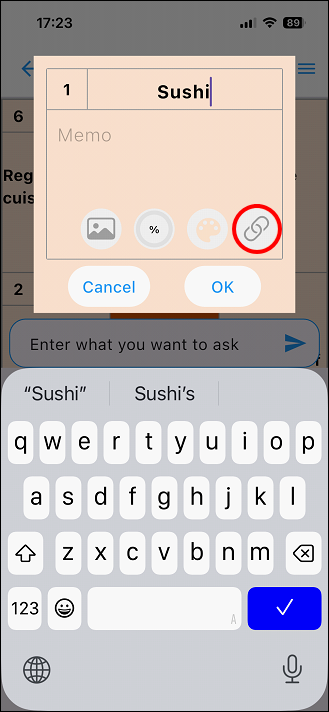
Paste the copied link and tap [OK].
A link icon appears next to "Sushi" in the chart.
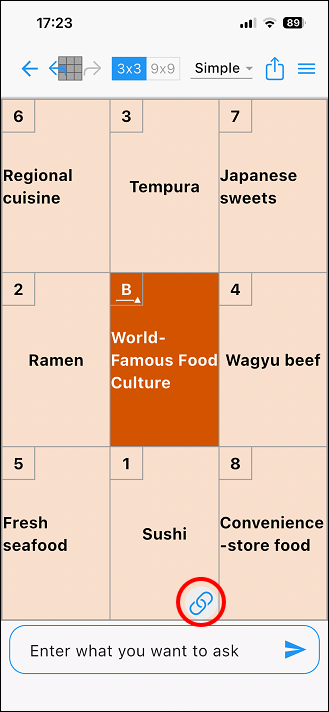
Tapping this icon opens Google Docs.
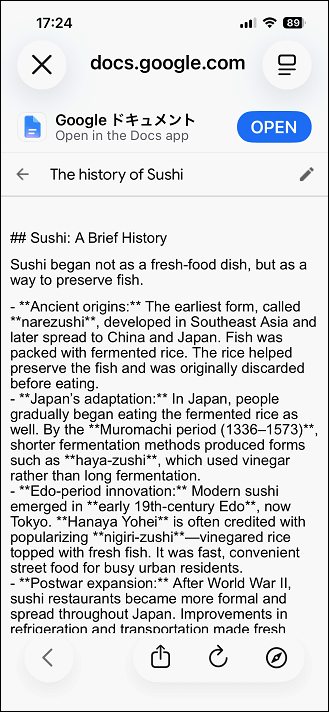
In this way, documents that can be referenced via links can be integrated
into the chart file.